Don’t let your critical thinking fade
Following up on my last post, where I went from using 1 shipping company to 3.
That meant I now needed to specify which carrier was used for each order, so it could be recorded properly in Google Sheets.
Here’s the process:
- After shipping with a courier, I enter the shipping details — Tracking No., the shipping fee paid to the courier — into the Web Admin.
- What’s new: selecting the carrier. Right now I use Flash, SPX, and Thailand Post, depending on which one fits the box size best.
- Once I hit save, the data gets sent to n8n.
- My n8n workflow only has 3 nodes:Receive data from the webhook (Web Admin)If there’s more than 1 product, split the row by item to prepare it for Google Sheets — this node runs on JavaScript codeSave each product SKU into Google Sheets
Now that I’d added a carrier, I needed the webhook sending data to n8n to include it — which meant editing the JavaScript node that splits the rows.
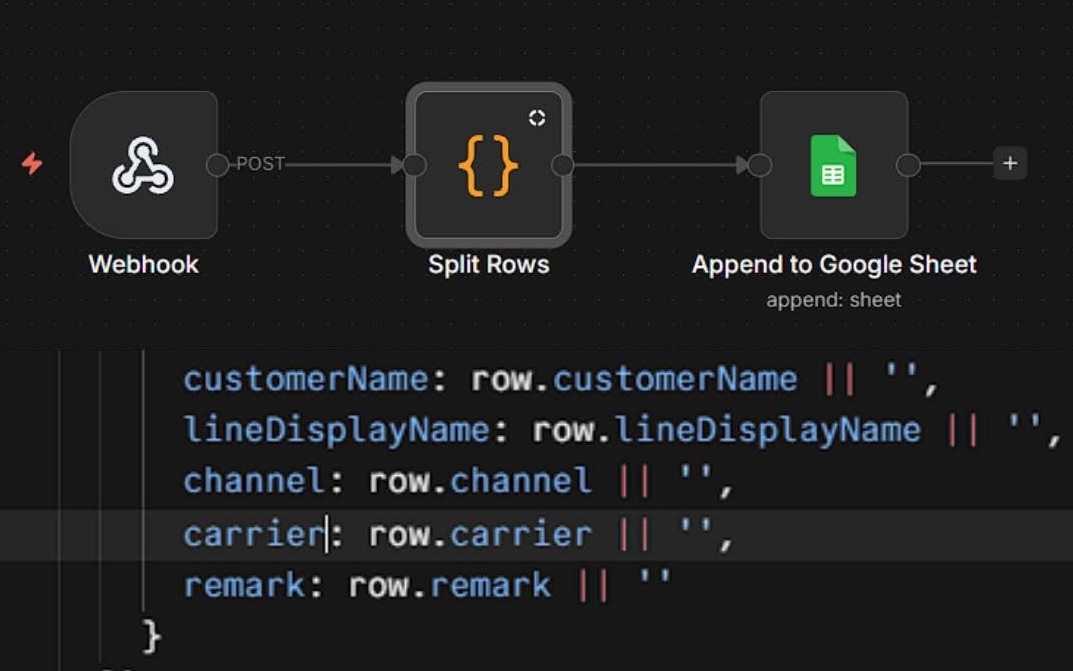
If the task is complex, I’ll use AI to help. But for something as small as adding a single field (carrier), AI really isn’t necessary. You can just look at the format of the existing fields.
For example, the previous row looked like this:
channel: row.channel || ''All I had to do was add one more line and rename the field to carrier:
carrier: row.carrier || ''Published it, then tested.
At first I got an error — I’d used “Carrier” with a capital C. Since it didn’t match the field name the webhook was actually sending, the system couldn’t pick it up. Once I changed it to lowercase “c”, it captured the value correctly and saved it to Google Sheets without issue.
This might sound intimidating to some, but the more you practice and experiment, the better you get — better than just letting AI think for you.
Learn by doing, not vibing.